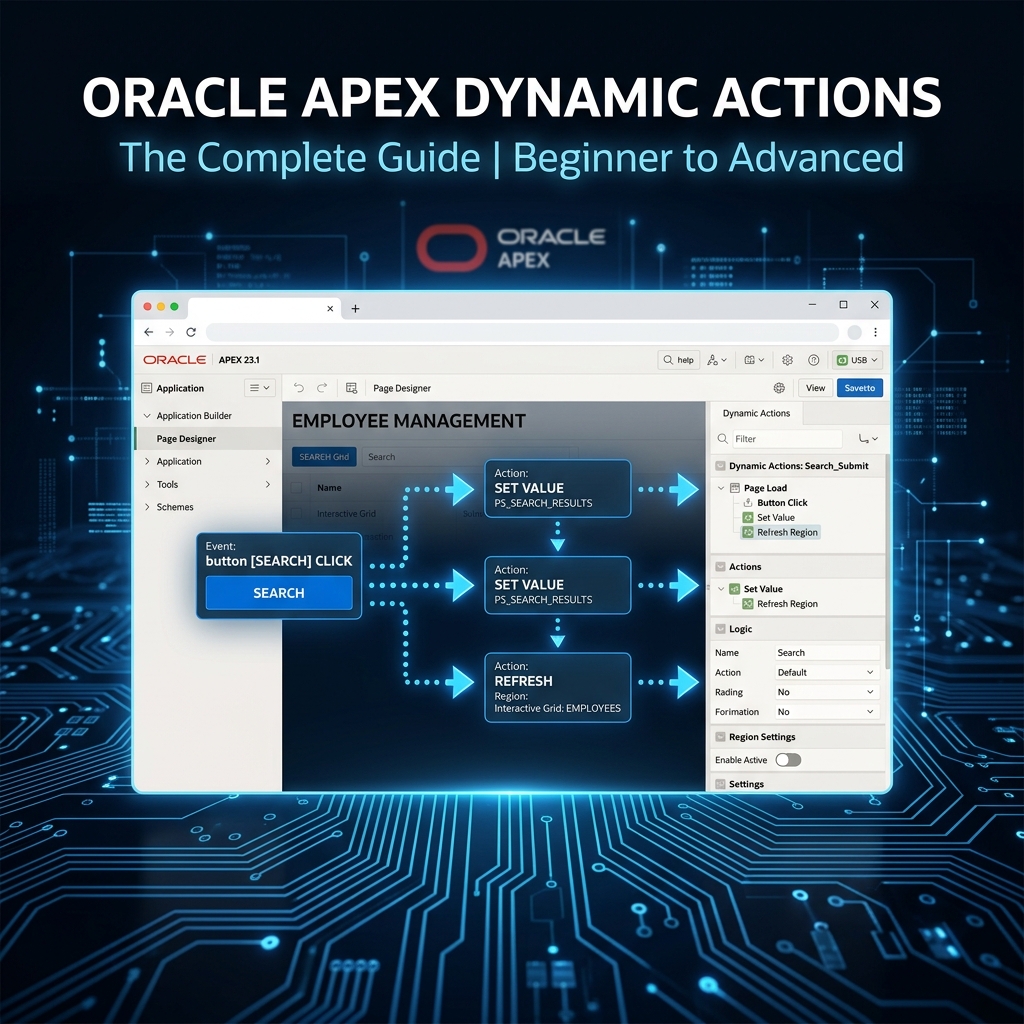
Oracle APEX Dynamic Actions: The Complete Beginner to Advanced Guide
If you have ever used Oracle APEX, you have probably seen the term Dynamic Actions appear in almost every tutorial. And for good reason — Dynamic Actions are the primary way you add interactivity and smart behavior to your pages without writing JavaScript from scratch.
In this guide, we will cover everything: what Dynamic Actions are, how they work under the hood, how to build simple ones, and how to chain complex conditional logic that powers enterprise applications.
What Are Dynamic Actions in Oracle APEX?
A Dynamic Action is an event-driven mechanism in APEX that lets you define what happens when something occurs on a page. You select a trigger event, an optional condition, and then one or more actions to perform.
Think of it as a declarative way to write: “When THIS happens, IF THIS CONDITION is true, THEN DO THIS.”
Behind the scenes, APEX converts your Dynamic Action configuration into JavaScript code. This means you get the power of JavaScript without needing to write it — unless you want to.
Anatomy of a Dynamic Action
Every Dynamic Action has three main parts:
- When (Trigger/Event): What triggers the action — a button click, page load, a field change, a timer, or a custom JavaScript event.
- Condition (Optional): A JavaScript expression or APEX comparison that controls whether the action runs.
- True/False Actions: What actually executes — show, hide, refresh, execute JavaScript, call a server-side process, and more.
Common Event Types You Should Know
| Event Name | When It Fires |
|---|---|
| Click | User clicks a button or element |
| Change | Value in a select list, text field, or checkbox changes |
| Page Load | Every time the page renders in the browser |
| Timer | Fires repeatedly at a set interval (great for dashboards) |
| Custom | Triggered by your own JavaScript events |
| Focus / Blur | User enters or leaves a field |
Your First Dynamic Action: Show/Hide a Region
Let’s start with the most common use case — showing a region based on a select list value.
Scenario: You have a form with a “Contract Type” select list. When the user selects “Fixed Price,” you want to show a “Budget Amount” region that is hidden by default.
Steps:
- In Page Designer, right-click your select list item and choose Create Dynamic Action
- Set the Event to Change
- Under When, set the Condition Type to Item = Value, Item to your select list, and Value to Fixed Price
- Under True Actions, add a Show action and set the Selection Type to Region, selecting your Budget Amount region
- Add a False Action for Hide on the same region
That is it. No JavaScript required. The region will appear and disappear dynamically based on the user’s selection.
Refreshing Reports and Charts Dynamically
Another incredibly common use case is refreshing a report or chart when a filter changes. Here is how:
- Create a Dynamic Action on your filter item (select list, date picker, etc.)
- Set Event to Change
- Add a True Action: Refresh
- Set the Selection Type to Region and select your Interactive Report or chart region
APEX will submit the filter item’s value and re-run the report’s SQL query with the new value — without a full page refresh.
Executing Server-Side PL/SQL with Dynamic Actions
This is where Dynamic Actions become extremely powerful. You can run database code directly from a Dynamic Action using the Execute Server-side Code action.
-- Example: Update a field value in the database when a checkbox is toggled
BEGIN
  UPDATE orders
  SET is_priority = :P1_PRIORITY_FLAG
  WHERE order_id = :P1_ORDER_ID;
  COMMIT;
END;
In the Dynamic Action, you configure which page items to submit before the code runs and which items to return afterward. This enables real-time database updates triggered by user interactions.
Auto-Refresh: Building Real-Time Dashboards
The Timer event is your key to live dashboards. Here is a step-by-step setup:
- Create a Dynamic Action on the page (not a specific item)
- Set Event to Timer
- Set Fire On Page Load to Yes
- Set Interval to 30000 (30 seconds in milliseconds)
- Add a True Action of Refresh on your chart or report region
Your dashboard will now automatically reload every 30 seconds, showing live data without any user interaction. This is exactly how production KPI dashboards are built.
Chaining Multiple Actions
A single Dynamic Action can perform multiple operations in sequence. For example, when a user confirms an approval:
- Execute Server-side Code (update status in database)
- Refresh the approval history report
- Show a success notification region
- Hide the approval buttons
All of these happen in order, from a single Dynamic Action trigger. The key is setting the Stop Execution on Error appropriately and ordering your True Actions correctly.
JavaScript Expressions as Conditions
Sometimes APEX’s built-in conditions are not enough. You can use JavaScript expressions for more complex logic:
// Show advanced settings only if both conditions are met
$v('P1_USER_ROLE') === 'ADMIN' && $v('P1_MODULE') !== 'READONLY'
Set Condition Type to JavaScript Expression and paste your expression. APEX evaluates it and runs the True or False actions accordingly.
Custom Events: Dynamic Actions Talking to Each Other
Advanced APEX developers use custom JavaScript events to let Dynamic Actions communicate. You can fire a custom event from one Dynamic Action and listen for it from another:
// Fire a custom event from Dynamic Action A (Execute JavaScript action)
apex.event.trigger('#employee_form', 'employee_saved', {empId: $v('P1_EMP_ID')});

// Listen for it in Dynamic Action B (Event = Custom, Custom Event = employee_saved)
// True Action: Refresh the employee list report
This pattern is especially useful in complex pages where multiple components need to stay in sync.
Best Practices for Dynamic Actions
- Name your Dynamic Actions clearly — “On P10_DEPT Change — Refresh Employee Report” is infinitely better than “Dynamic Action 1”
- Use Fire on Initialization wisely — Set this when you need the action to run on page load as well as on the event
- Minimize server round trips — Use client-side conditions (JavaScript) instead of server-side conditions when possible
- Test with browser DevTools — Dynamic Actions generate JavaScript you can inspect in the Console to debug issues
- Avoid excessive True/False action chains — If you have more than 5–6 actions, consider breaking them into separate Dynamic Actions or using a shared JavaScript function
Debugging Dynamic Actions
When a Dynamic Action is not behaving as expected, here is how to diagnose it:
- Open the browser’s Developer Tools (F12)
- Go to the Console tab
- Enable APEX debug mode by adding
?debug=YESto the page URL - Look for JavaScript errors and APEX debug messages
- In the Network tab, check if server-side actions are making AJAX calls and what they return
Most Dynamic Action problems fall into a few categories: wrong selection type, missing item submission, or a JavaScript condition that evaluates unexpectedly.
Final Thoughts
Dynamic Actions are what transform APEX from a simple report builder into a professional application platform. Once you are comfortable with the basics, you will find yourself using them everywhere — from simple show/hide logic to complex multi-step workflows that update the database and refresh multiple regions.
Start with the simple patterns, then gradually add conditions, server-side code, and custom events as your applications grow in complexity. Mastery of Dynamic Actions is arguably the single most important skill for any serious Oracle APEX developer.
Have a Dynamic Action challenge you are stuck on? Drop it in the comments — I read every one.