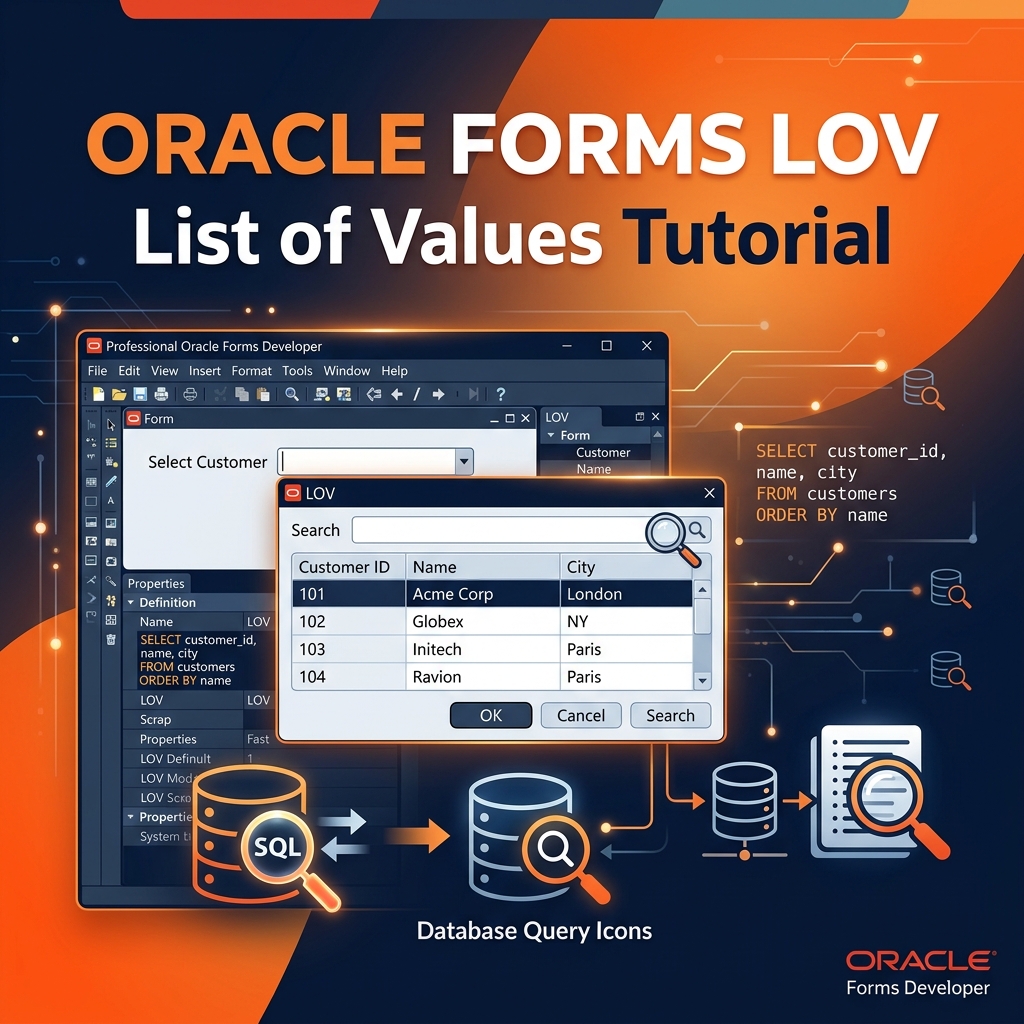
Oracle Forms LOV (List of Values) — Complete Tutorial
A List of Values, or LOV, is one of the most useful features in Oracle Forms. It gives users a searchable popup window to look up and select valid values for a field — eliminating free-text entry errors and keeping data clean.
In this complete tutorial, we cover how to create an LOV from scratch, how to link it to an item, how to customize its appearance and query, and some advanced patterns that make LOVs truly powerful in production applications.
What Is an LOV?
An LOV is essentially a small, modal dialog box with a built-in query result. When a user activates it — usually by pressing F9 or clicking a button — Oracle Forms runs a SQL query and presents the results in a scrollable list. The user selects a row, and Oracle Forms copies the selected values back to one or more form items.
LOVs are backed by Record Groups, which we cover in another article. For now, understand that every LOV has exactly one Record Group that defines its data source.
Creating an LOV Step by Step
The cleanest way to create an LOV in Oracle Forms Builder is using the LOV Wizard.
Step 1: Open the LOV Wizard
In the Object Navigator, right-click on LOVs under your form module and select LOV Wizard.
Step 2: Choose New Record Group
Select “New Record Group based on a query.” This automatically creates the Record Group and connects it to the LOV.
Step 3: Write the SQL Query
Enter the SQL query that will populate the LOV. For example, an employee LOV:
SELECT employee_id,
       first_name || ' ' || last_name AS full_name,
       department_name
FROM   employees e
JOIN   departments d ON e.department_id = d.department_id
ORDER BY last_name, first_name
The columns you SELECT become the columns shown in the LOV popup.
Step 4: Select Return Columns
Map the LOV columns to form items. This is the most important step:
- EMPLOYEE_ID → Return value to
P_EMP_ID(the hidden key field) - FULL_NAME → Return value to
P_EMP_NAME(the visible name field) - DEPARTMENT_NAME → Return value to
P_DEPT_NAME(auto-populate the department)
You can return multiple values from a single LOV selection. This is one of the most powerful aspects of Oracle Forms LOVs.
Step 5: Set Position and Size
Set the popup window dimensions and position. A typical LOV is 400–500 pixels wide and 250–300 pixels tall, positioned near the center of the screen.
Attaching the LOV to a Form Item
Creating the LOV is only half the job. You need to attach it to a specific item so users can trigger it.
Click on the text item where users will use the LOV. In its Property Palette:
- Set LOV property to the name of your LOV object
- Set List of Values to the LOV name
- Set Validate from List to Yes if you want Oracle Forms to validate entered values against the LOV automatically
Now when the user presses F9 while in this item, the LOV popup will appear.
Auto-Reduction: Filtering the LOV by What the User Types
This is a feature that users love. When Automatic Display is set to Yes on the LOV, and the user types something in the field and presses F9, the LOV automatically filters its results to match what was typed.
For example, if the user types “SMI” and presses F9, the LOV opens showing only employees whose name starts with “SMI” — like Smith, Smits, and Smithson.
Oracle Forms does this by appending a WHERE column LIKE 'SMI%' condition to the Record Group query automatically.
Dynamic LOV Queries Using Bind Variables
Sometimes you need the LOV to filter based on the current state of the form. For example, a Department LOV that only shows departments belonging to the currently selected business unit.
Use a bind variable in the Record Group query:
SELECT department_id, department_name
FROM   departments
WHERE  business_unit_id = :P_BUSINESS_UNIT_ID
ORDER BY department_name
The :P_BUSINESS_UNIT_ID bind variable automatically uses the current value of that form item when the LOV query runs. No extra code needed — Oracle Forms resolves the bind variable at runtime.
LOV with a Search Field — Modifying the Query Dynamically
For large tables, you might want to let users refine the LOV query before it runs. The technique is to programmatically modify the Record Group’s query before displaying the LOV:
DECLARE
  rg_id RECORDGROUP;
  err   NUMBER;
BEGIN
  rg_id := FIND_GROUP('EMP_LOV_RG');

  SET_GROUP_SELECTION_FILTER(
    rg_id,
    'WHERE last_name LIKE :search_prefix || ''%'' ORDER BY last_name'
  );

  err := POPULATE_GROUP(rg_id);

  IF err = 0 THEN
    GO_ITEM('BLOCK.EMP_ID');
    LIST_VALUES;
  ELSE
    MESSAGE('No records found matching your search.');
  END IF;
END;
LOV Triggers: Before and After
Oracle Forms provides triggers you can use to execute code before or after the LOV interaction:
KEY-LISTVAL trigger: Fires when the user presses F9 (or the LOV key). Override this trigger to execute your own PL/SQL before showing the LOV.
-- KEY-LISTVAL trigger: validate before showing LOV
IF :P_BUSINESS_UNIT_ID IS NULL THEN
  MESSAGE('Please select a Business Unit before looking up a Department.');
  RAISE FORM_TRIGGER_FAILURE;
ELSE
  LIST_VALUES; -- Show the LOV normally
END IF;
POST-QUERY trigger on the LOV item: Use this to populate additional fields or run validation after the user selects from the LOV.
Best Practices for Oracle Forms LOVs
- Keep LOV queries efficient: Use indexes on the WHERE clause columns. LOVs against unindexed large tables will be noticeably slow
- Limit columns displayed: Show only 2–3 columns in the LOV popup. More than that makes it cluttered and hard to read
- Use Validate from List wisely: If set to Yes, users cannot enter values not in the LOV. This is great for enforced lookups but can be frustrating if the LOV data is incomplete
- Name LOVs and Record Groups consistently: Use a convention like
LOV_EMPLOYEEandRG_EMPLOYEEso they are easy to find in the Object Navigator - Reuse Record Groups: If two LOVs use the same underlying query, they can share one Record Group
Troubleshooting Common LOV Issues
LOV appears but no data shows: Check the Record Group query in the Object Navigator. Run it manually in SQL*Plus or SQL Developer to verify it returns data. Also check bind variables — if :P_ITEM is NULL, the query may return zero rows.
LOV does not open when pressing F9: Verify the LOV property is set on the item. Also check if a KEY-LISTVAL trigger is raising FORM_TRIGGER_FAILURE prematurely.
Values do not copy back to the form: Review the Column Mapping in the LOV’s property palette. The Return Item column names must exactly match the block and item names.
LOV opens but auto-reduction not working: Set the Automatic Skip property to Yes and verify the LOV’s first column is a text column, not numeric.
Conclusion
Oracle Forms LOVs are deceptively simple to create and extraordinarily useful in practice. The ability to return multiple values from a single user selection, combined with dynamic query filtering using bind variables, makes LOVs one of the most productive data entry tools available.
Once you understand the relationship between the LOV, the Record Group, and the item properties, you can build sophisticated lookup interfaces that users find intuitive and fast.
If you have a specific LOV setup question or a tricky scenario you are trying to solve, drop it in the comments below.